In this guide, you will learn the steps of how to accomplish setting up your own domain for your Quizard Quiz Game, such as "yourdomain.tld", or a subdomain, such as "quiz.yourdomain.tld"., alongside some additional specific guides for different domain DNS providers on the new dashboard.
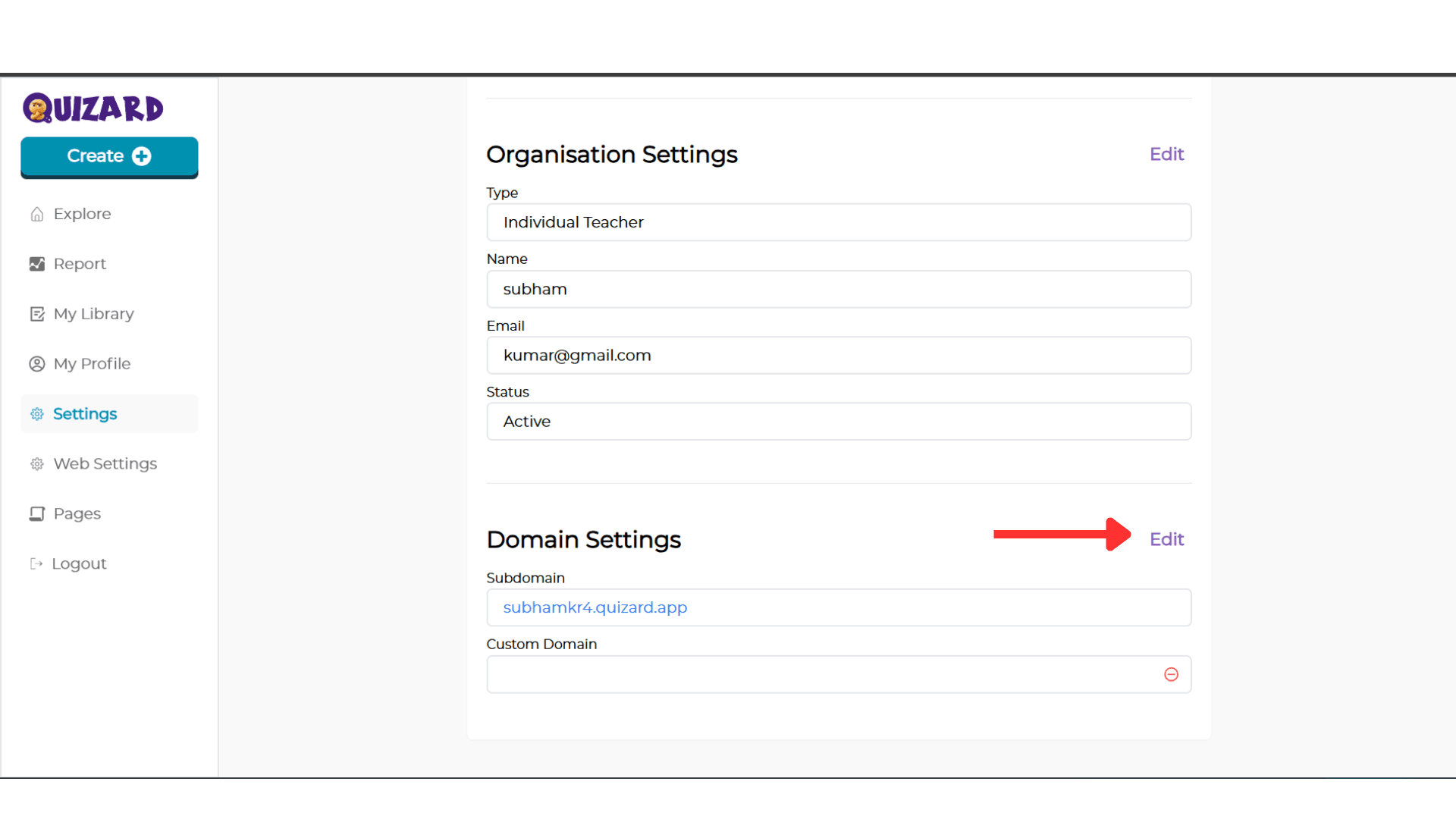
Step 1: On the "Domain Settings" Section, click on edit button
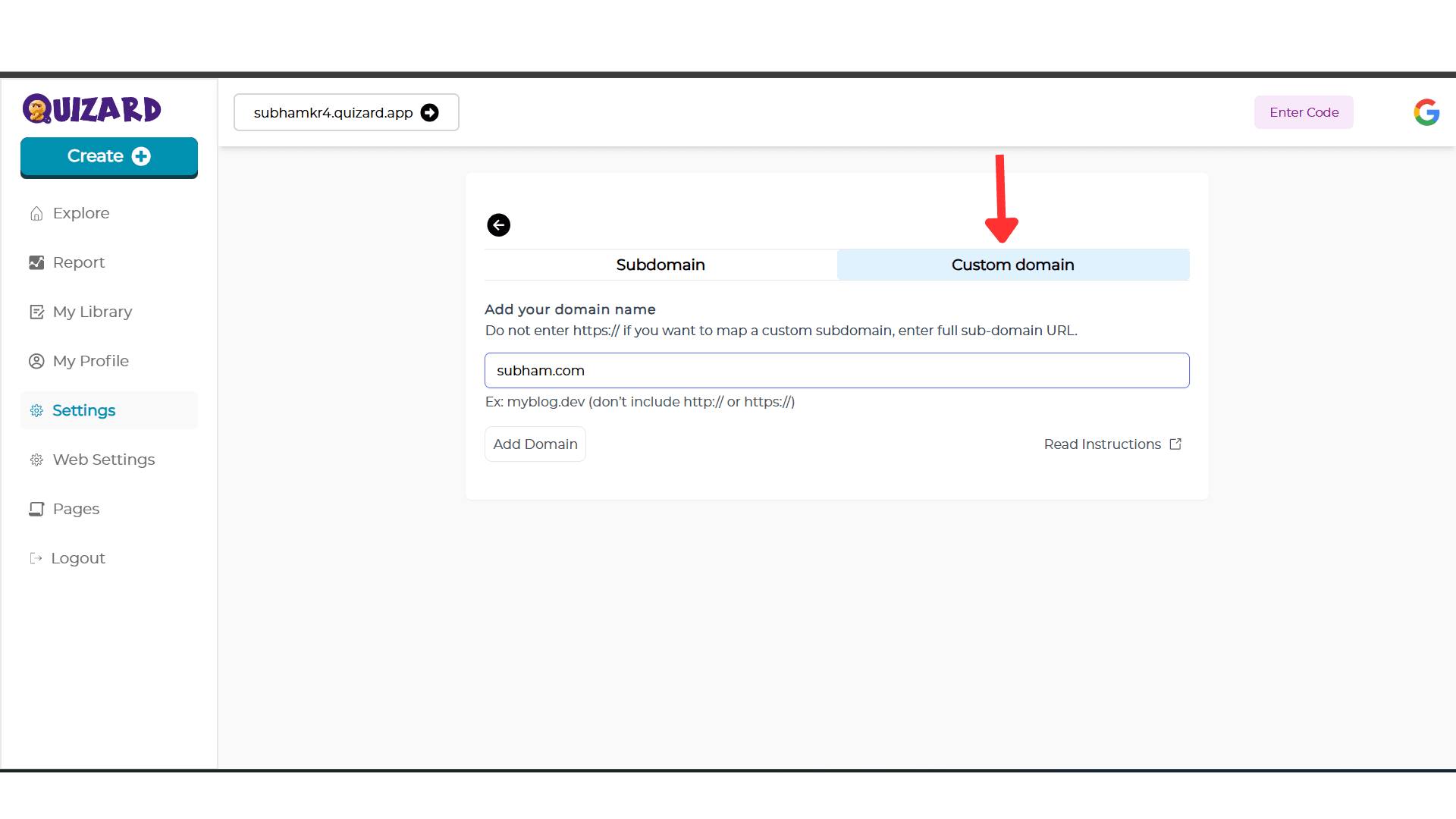
Step 2: Click On the "Custom Domain" tab.
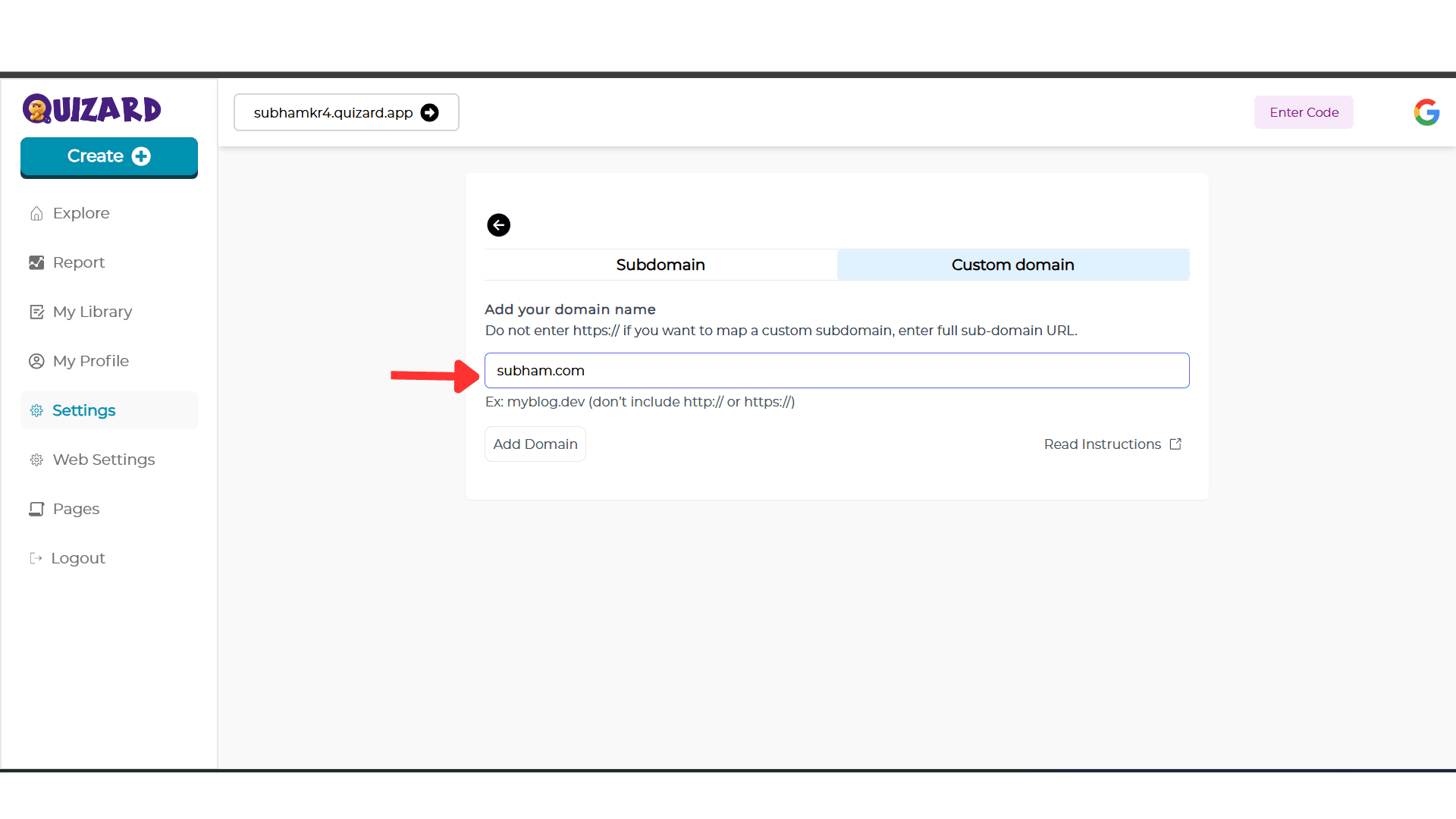
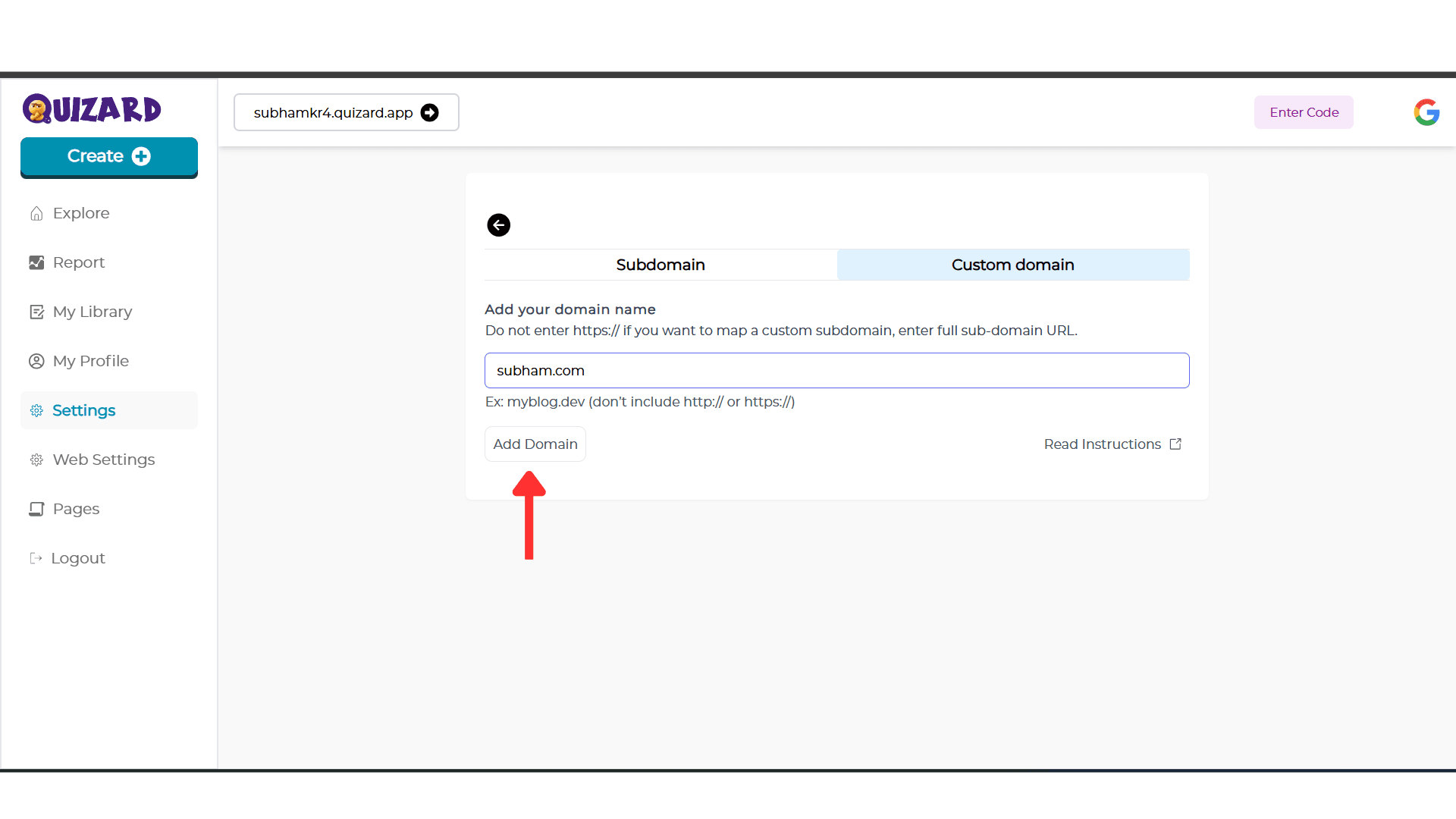
Step 3: Enter your domain without the "www" or "https://" prefix in the text field provided.
Step 4: Then click on the "Add domain" button to proceed.
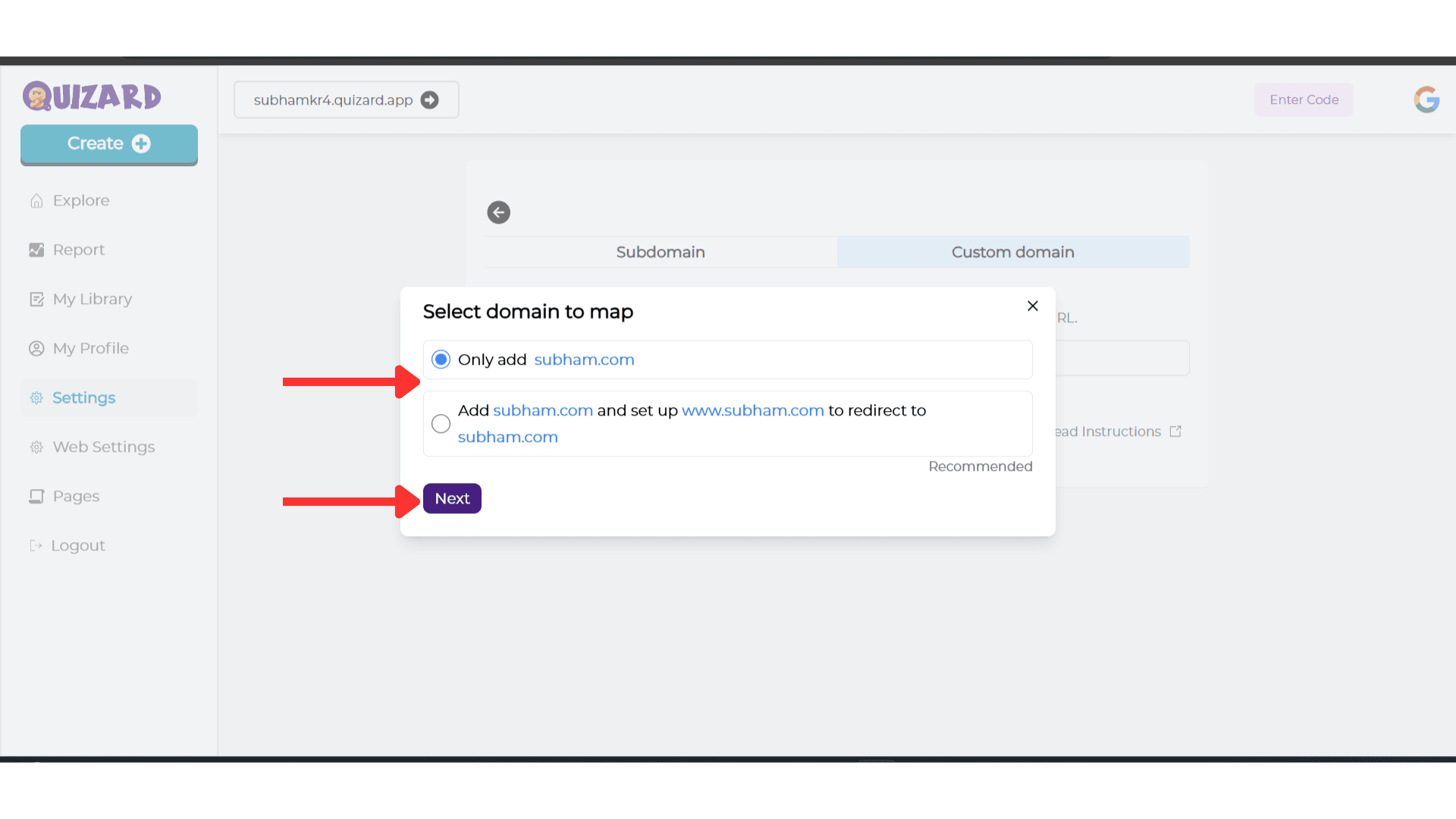
Step 5: From the popup, select if you want to use the "www" and redirect it to the "non-www" version (apex domain) or not.
Step 6: Head over to your DNS provider and add an "A record" for your apex domain at the root whose hostname is "@" with a value of "0.0.0.0".
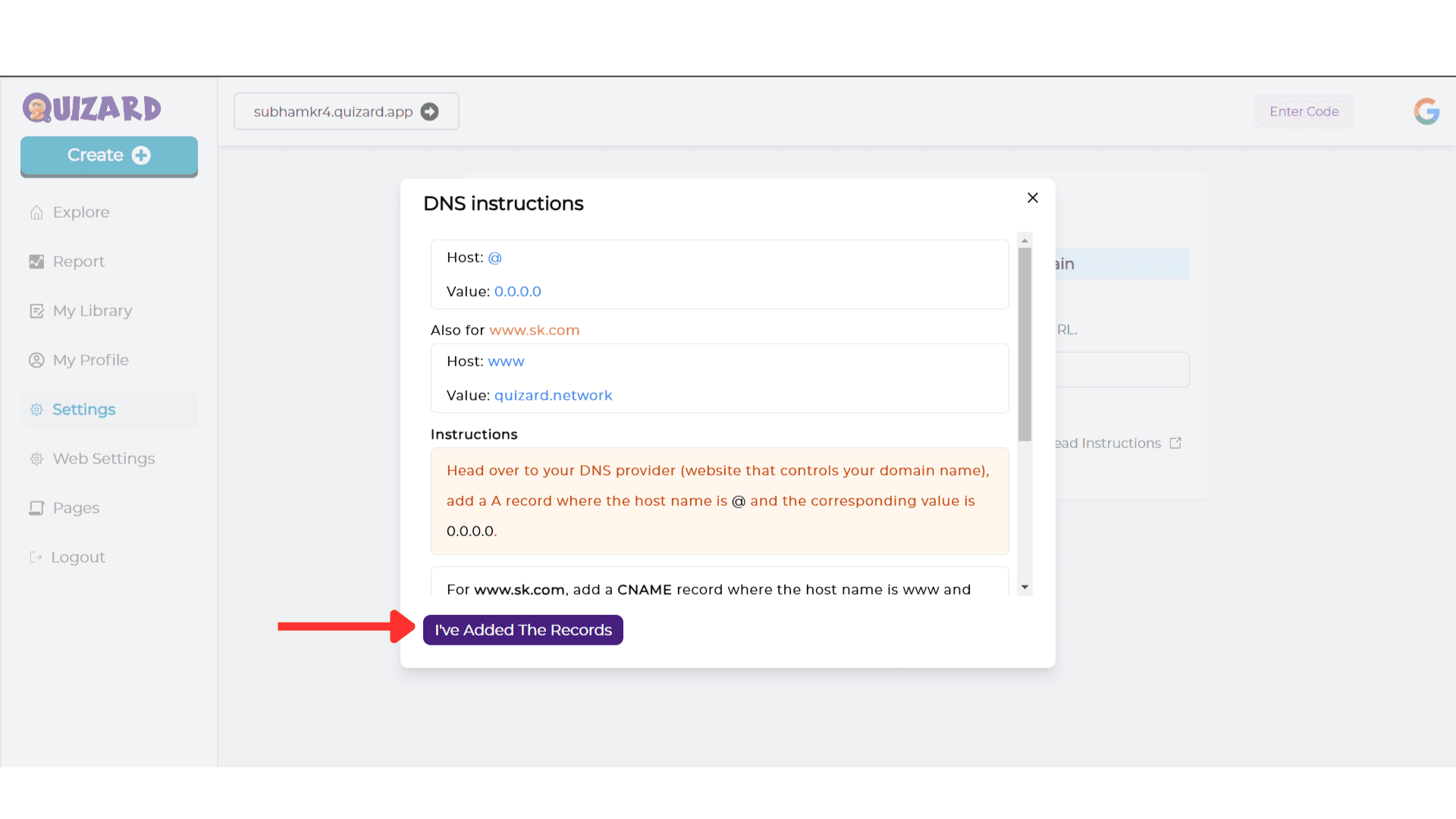
Step 7: Add a CNAME record for the WWW of your domain, where the hostname is "www", and the corresponding value is "quizard.network". This CNAME record will point your domain or subdomain to Quizard's IP address.
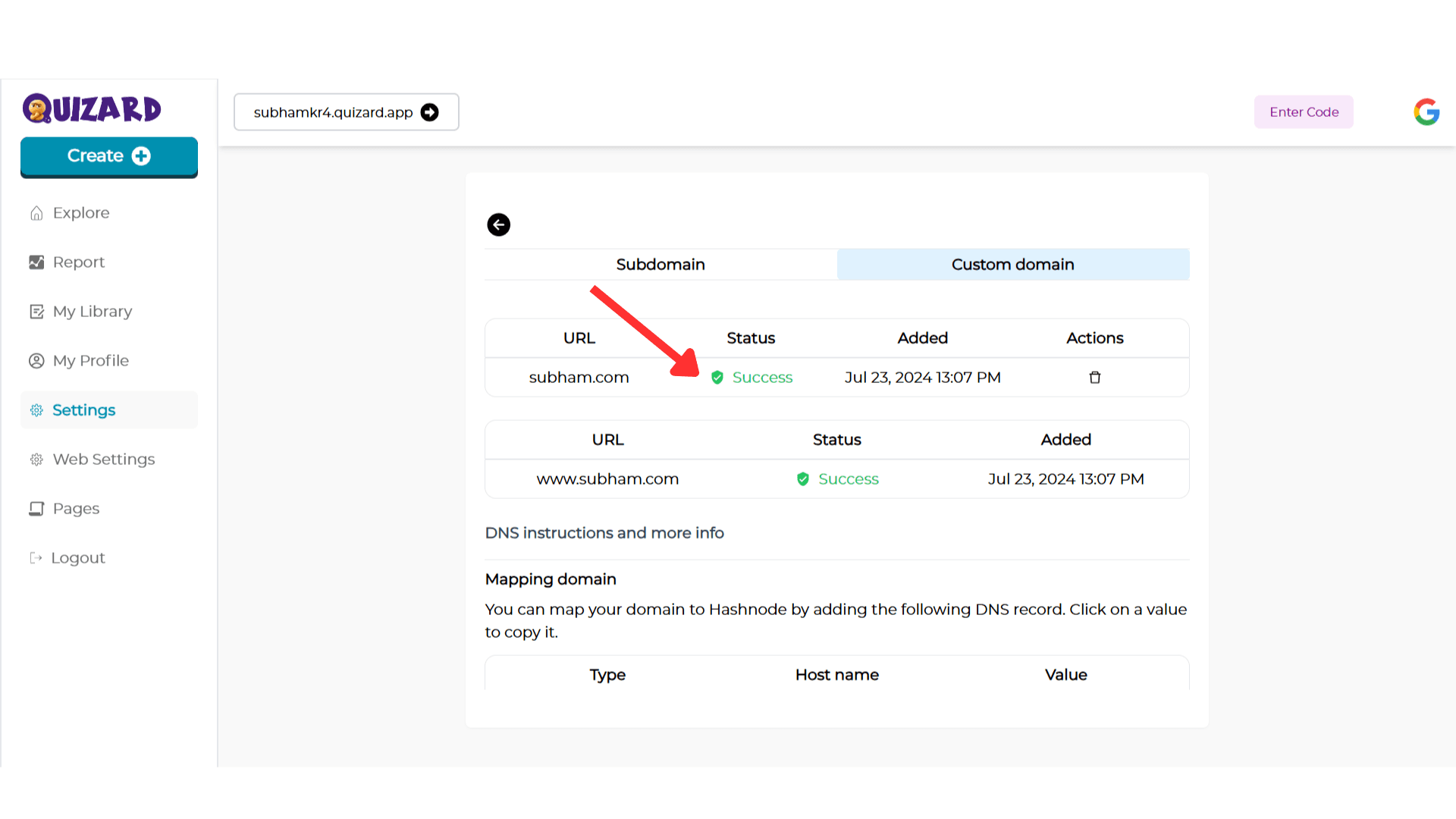
Step 8: When your domain is successfully mapped and ready, you will see the green check icon and Valid label as shown below: